
Help center › Restaurants
Use the kitchen screen
The Kitchen screen shows each ticket as soon as it's sent. You can run it on a tablet or a TV in the kitchen.
Set up the kitchen
- Create a user with the Kitchen role in Settings → Users. When they sign in, they go straight to this screen.
- Tap ⛶ Full screen so it fills the screen. Diego keeps the screen from going to sleep.
- If you want paper tickets, check Auto-print tickets.
Work the tickets
- Pending lists the tickets, oldest first. The color shows the time: green under 10 minutes, amber 10 to 20, red over 20.
- Each ticket shows the table, number, server and the dishes by seat. Notes show in orange, and removed dishes say VOID.
- Tap Cooking when you start (optional) and ✓ Ready when it's done. The waiter gets an alert on their phone.
- Tap 🖨 to print a ticket. On the Ready tab, Undo sends it back to pending.
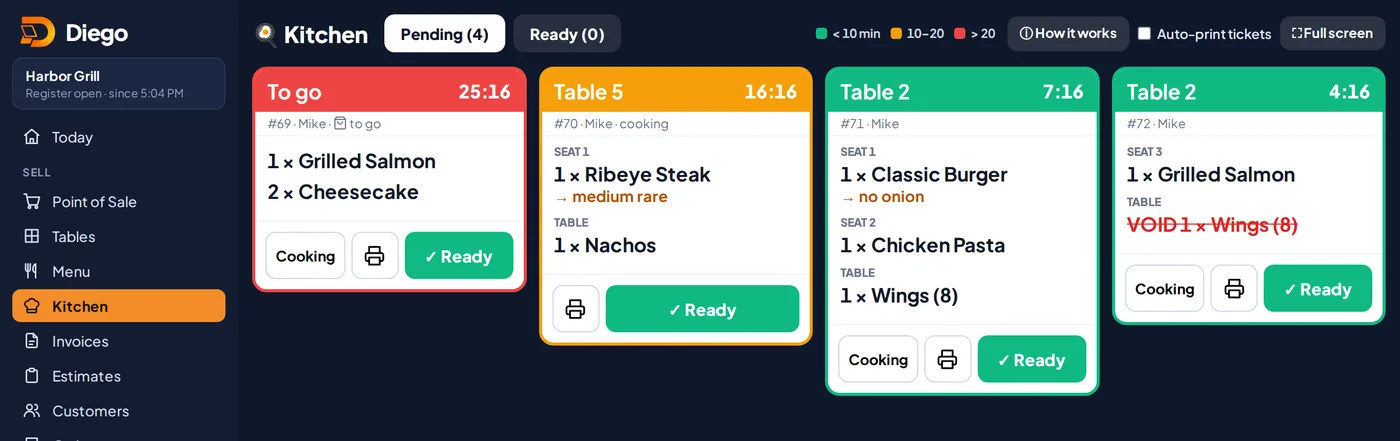
The kitchen screen with pending tickets.
Related articles
Take a table order and send it to the kitchenOpen a table, add dishes for the whole table or by seat, and send the ticket to the kitchen.Waiters: take orders from a phoneWaiters take the order on their phone, add notes for the kitchen and get an alert when the food is ready.Add users, roles and PINsInvite your team, choose what each person can do and give them a PIN to switch cashiers and approve actions.
Still have questions?
Write to us and we'll reply within one business day.