
Help center › Restaurants
Waiters: take orders from a phone
On a phone, Tables opens in a version made for waiters: fast, with big buttons and no payments.
Before you start
- Create a user with the Waiter role in Settings → Users and enter their email so they can create a password.
- The waiter opens diegopos.app on their phone and lands right on Tables.
Take the order
- Tap the table. At the top, set the number of guests with − and +.
- Under For: choose Table or a seat (A1, A2…). The last button switches between 🍽 Dine in and 🛍 To go.
- Use Search the menu… or a category, and tap each dish to add it.
- Tap View order to check it. + note adds a note for the kitchen, for example "no onion, medium".
- Tap 🍳 Send to kitchen. You'll see Sent to the kitchen ✓.
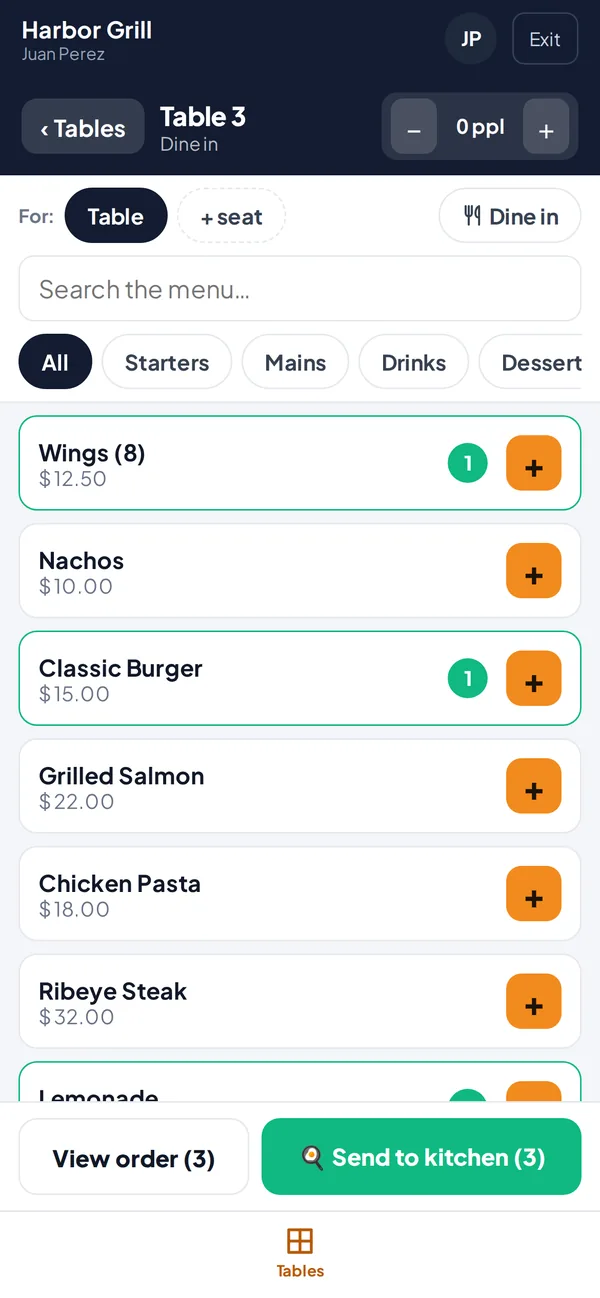
A table's order on the waiter's phone.
Serve
- When the kitchen marks a dish ready, the phone beeps and vibrates, and it shows under ✅ Ready to serve.
- Take the food out and tap Served.
Related articles
Take a table order and send it to the kitchenOpen a table, add dishes for the whole table or by seat, and send the ticket to the kitchen.Use the kitchen screenHow the kitchen sees tickets, marks them ready, prints them and lets the waiter know.Add users, roles and PINsInvite your team, choose what each person can do and give them a PIN to switch cashiers and approve actions.
Still have questions?
Write to us and we'll reply within one business day.