
Help center › Restaurants
Take a table order and send it to the kitchen
Orders are taken in Tables. Diego only sends the kitchen what's new, so you can keep adding dishes to the same tab.
Open the table
- In Tables, tap the table.
- Set Guests at the table with − and +, and choose the Order type: At table or Takeout.
- Tap 📋 Start Order (or + Add items if the table already has an open tab).
Add the dishes
- Filter by category or tap All. Tap + Add on each dish.
- Under Add to: choose 🍽 Whole table or a Seat, so you can charge by seat later. + Seat adds another seat.
- Current order shows the dishes grouped by seat. Use − to remove one.
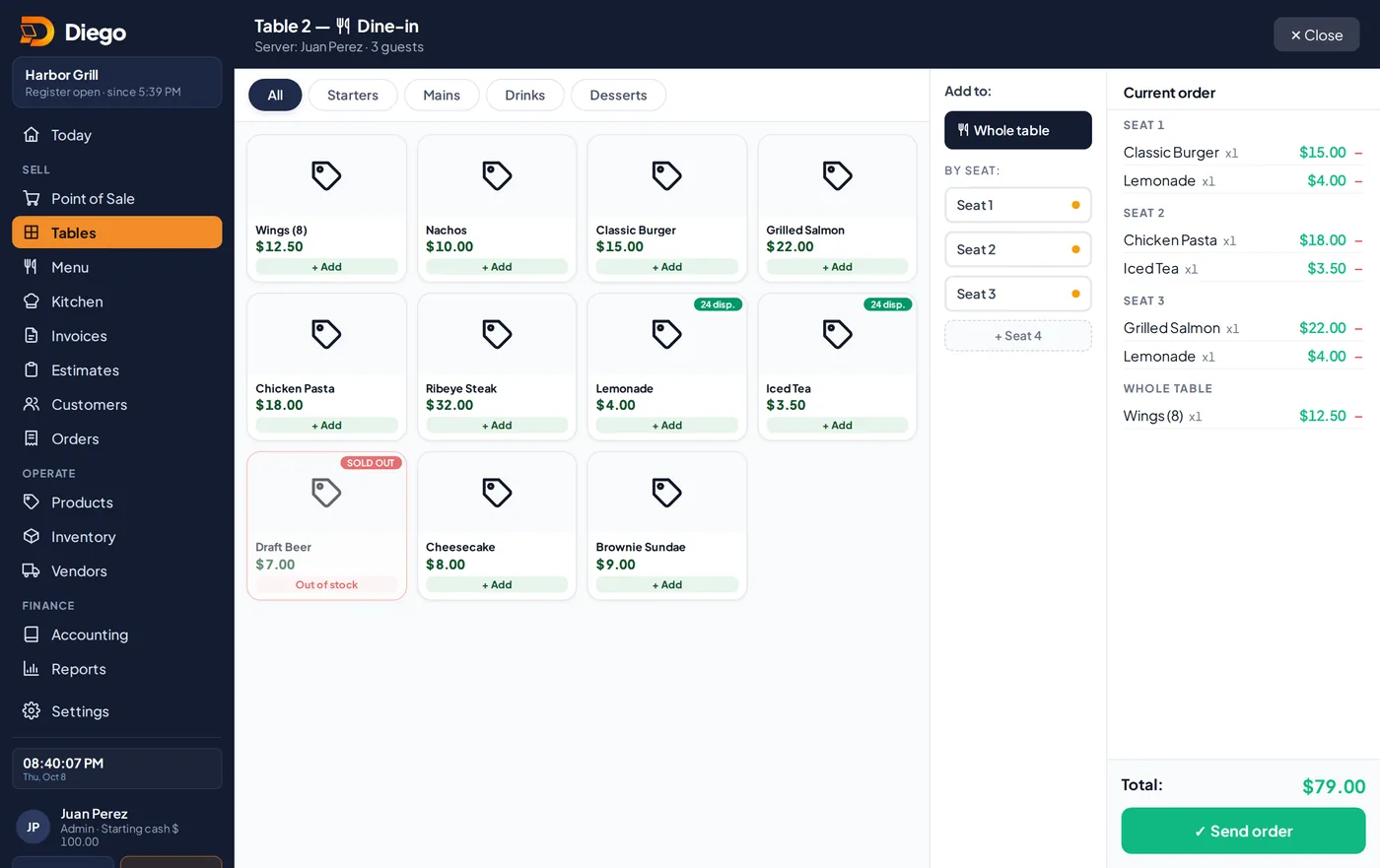
An order with dishes by seat.
Send it to the kitchen
- Tap ✓ Send order. You'll see Order sent to the kitchen ✓.
- If you add more dishes later and send again, the kitchen only gets the new ones.
- If you remove a dish that was already sent, the kitchen gets it marked VOID.
Related articles
Set up your tables and seating areasCreate your tables, group them by area (patio, upstairs) and lay out your floor plan by dragging them.Use the kitchen screenHow the kitchen sees tickets, marks them ready, prints them and lets the waiter know.Charge a table: full check, by seat and tipCharge the full check or by seat, add the tip and choose the payment method.
Still have questions?
Write to us and we'll reply within one business day.