
Help center › Restaurants
Your restaurant menu and special dishes
Menu shows your products as a menu, with what's available based on inventory.
See the menu
- In the left menu, tap Menu. Each dish shows how many are left, SOLD OUT or Special dish.
- Search with Search the menu... or filter by category.
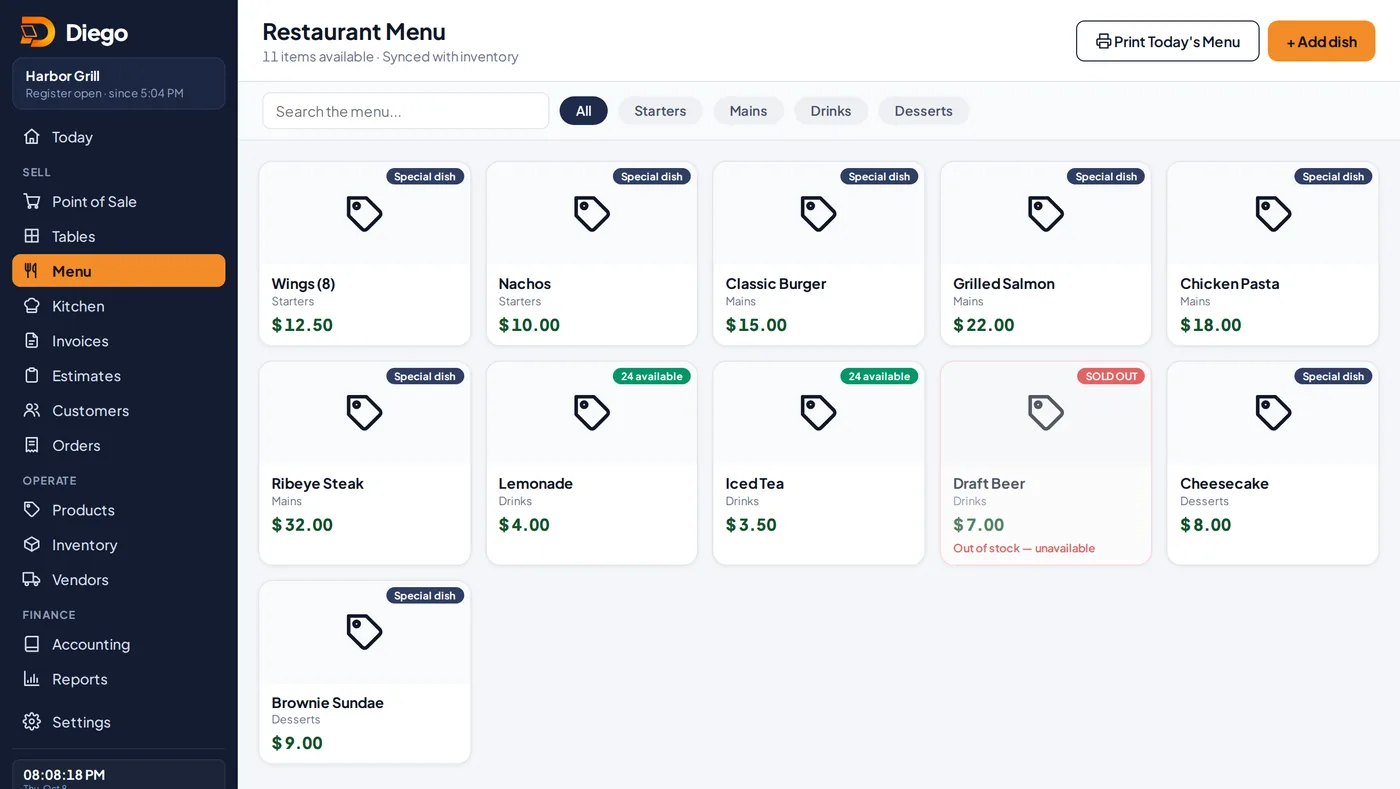
The menu with available and sold-out dishes.
Add a dish
- Tap + Add dish.
- Enter the Dish name, Price, Category and a Description if you like.
- Under Does this dish track inventory? choose Yes, track stock (for drinks or items you count) or No, special dish (for prepared dishes that are always available).
- Tap Add to menu.
Print today's menu
- Tap 🖨 Print Today's Menu. It includes dishes in stock and special dishes.
Related articles
Create and edit productsAdd your products with price, cost, category, barcode, photo and sales tax, and choose whether Diego tracks their stock.Check your inventory and adjust it with a PINSee which products are low or out of stock, and fix a quantity with a reason and a manager's PIN.QR menu: guests order from the tablePrint each table's QR code so guests can see the menu and send their order from their phone.
Still have questions?
Write to us and we'll reply within one business day.