
Help center › Products and inventory
Check your inventory and adjust it with a PIN
Inventory shows how much you have of each product that tracks stock, and warns you about what's running low.
Check your stock
- In the menu, tap Inventory.
- Use the All, Normal, Low and Out of Stock filters, or search for a product (you can scan it too).
- Low Stock means you have the Minimum you set or less.
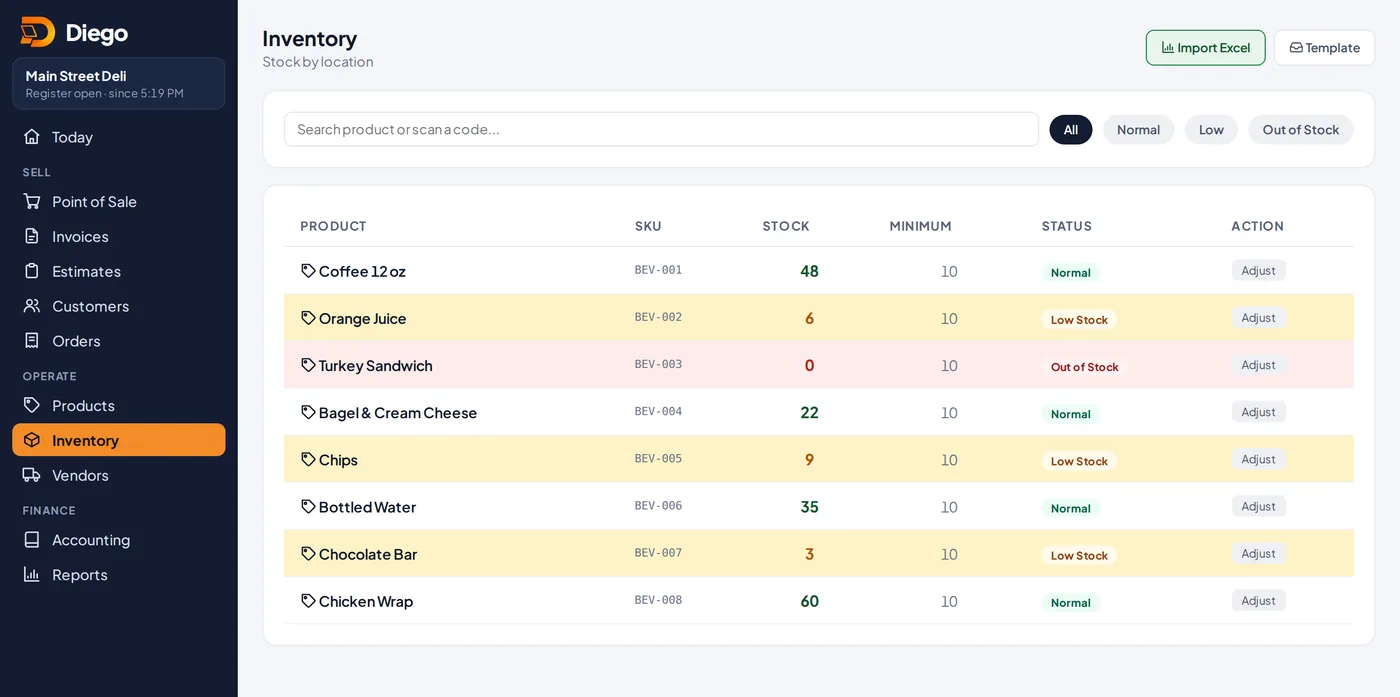
Inventory with low and out-of-stock products.
Adjust a quantity
- Tap Adjust on the product. You'll see the Current stock and Recent movements.
- Enter the New quantity. You can also change the Minimum (low-stock alert).
- Choose the Reason: physical count, damaged, expired, loss or theft, internal use, customer return, fixing an error, or other. Add a Note if needed.
- An admin or manager types their PIN in Admin or manager PIN. Tap Save.
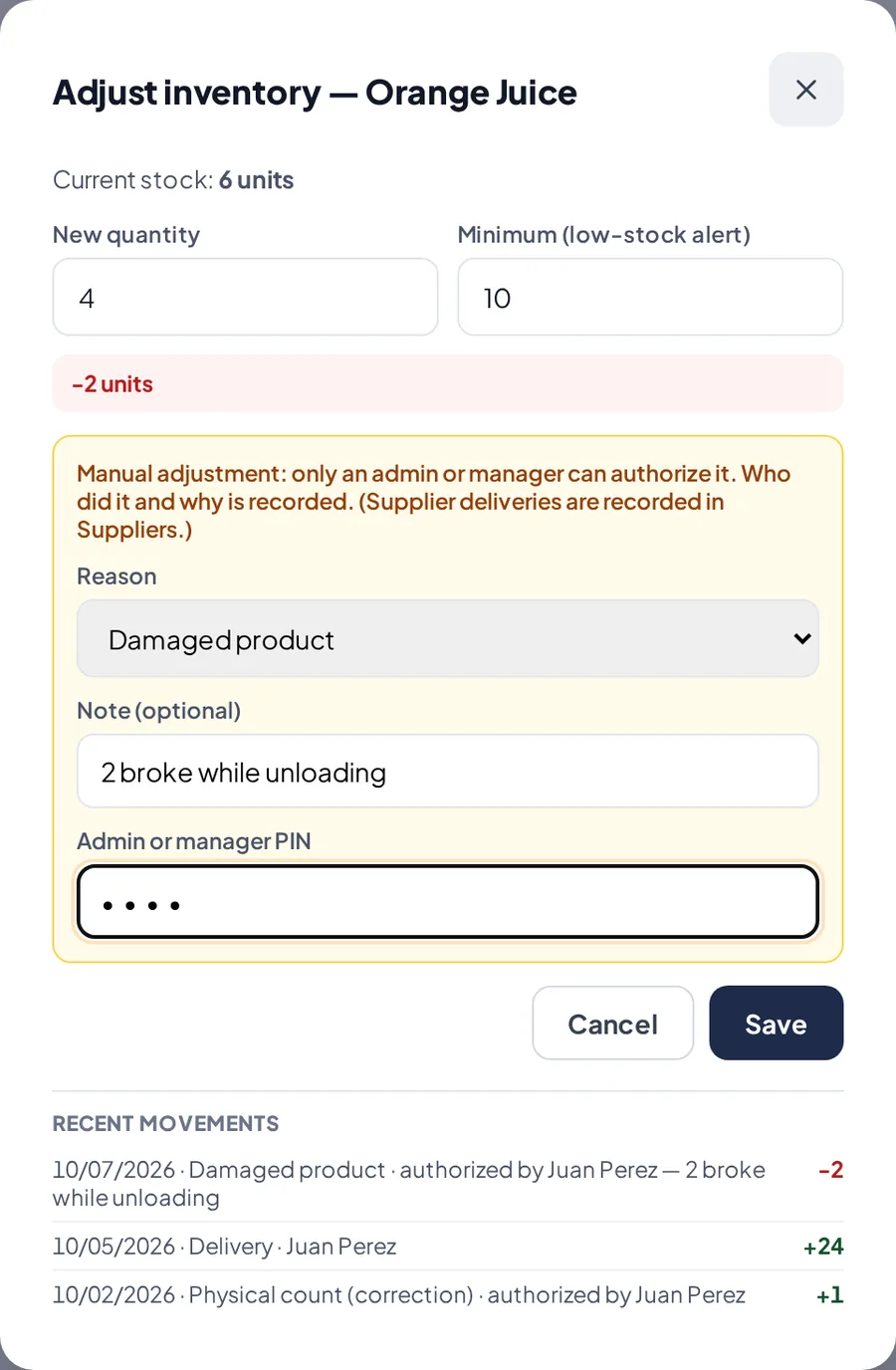
An inventory adjustment with reason and PIN.
Related articles
Vendors and deliveriesSave your vendors and record each delivery. Inventory goes up on its own.Create and edit productsAdd your products with price, cost, category, barcode, photo and sales tax, and choose whether Diego tracks their stock.Import your products from a fileUpload many products at once with a CSV file containing the name, price and quantity.
Still have questions?
Write to us and we'll reply within one business day.