
Help center › Products and inventory
Create and edit products
Everything you sell is a product: merchandise, dishes or services. Products lists them with price, cost, margin and what's available.
Create a product
- In the menu, tap Products, then + New Product.
- Enter the Product name, Price and Cost (with the cost, Diego shows you the Margin).
- Choose the Category and, if you like, the SKU and Barcode (you can scan it).
- Tap 📷 Upload image to add a photo (JPG or PNG, up to 2 MB).
- Tap the tax box to choose whether the product is taxed or Exempt from Sales Tax.
- Tap the inventory box: Track inventory (sales reduce stock) or No inventory tracking (for prepared dishes, services or labor).
- Tap Create Product.
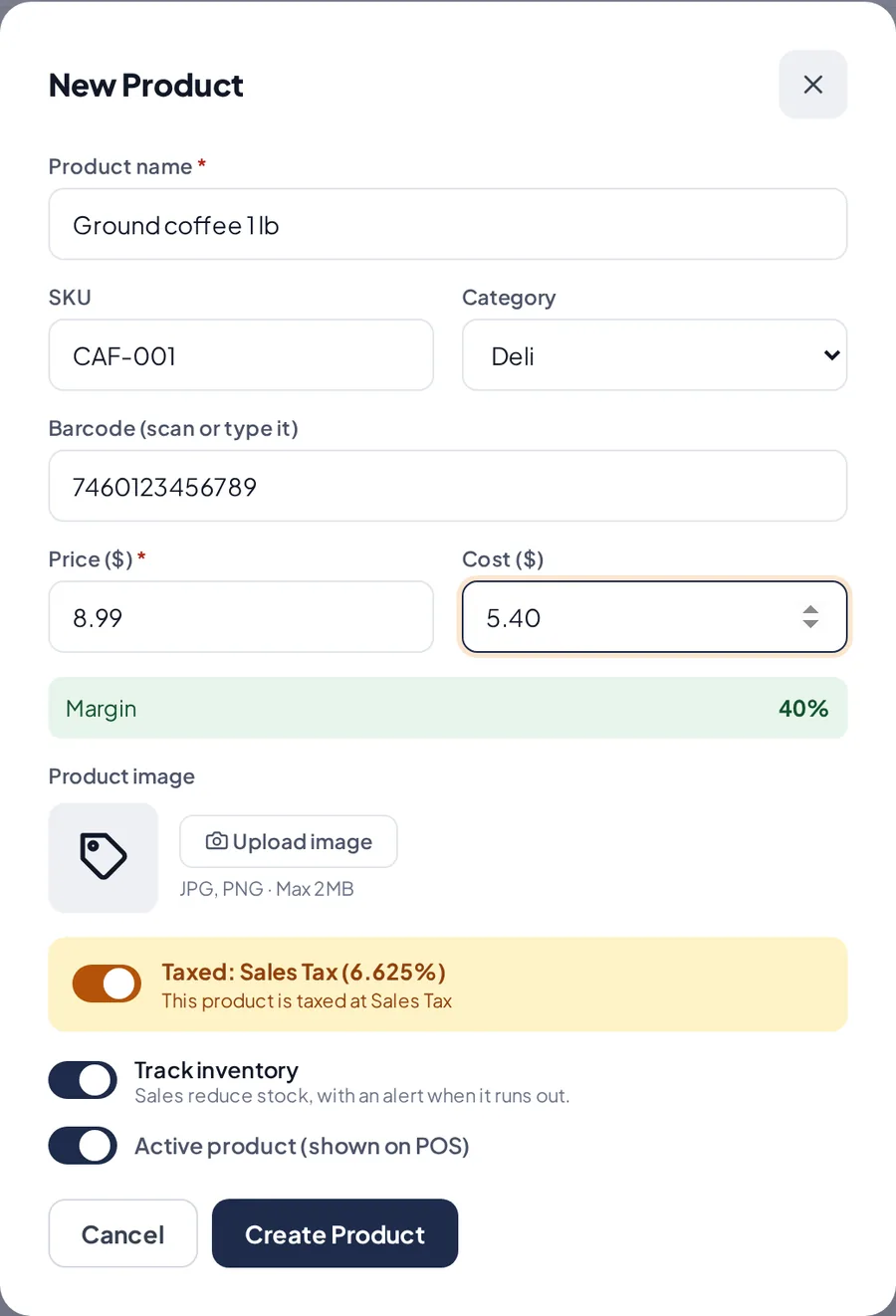
The new product form.
Edit or deactivate
- Tap Edit on the product's row and change what you need. Tap Save Changes.
- To stop showing it at the Point of Sale, tap Active product in the form to switch it to Inactive product.
Use a barcode scanner
- With the product list open, scan a code. If it exists, it opens for editing. If it's new, New Product opens with the code filled in.
Related articles
Organize products into categoriesCreate categories with an icon and color so you find products faster at the Point of Sale.Check your inventory and adjust it with a PINSee which products are low or out of stock, and fix a quantity with a reason and a manager's PIN.Import your products from a fileUpload many products at once with a CSV file containing the name, price and quantity.
Still have questions?
Write to us and we'll reply within one business day.