
Help center › Restaurants
QR menu: guests order from the table
Each table has its own QR code. Guests scan it, see the menu that's available and send their order without downloading anything or signing up.
Print the QR code
- In Tables, tap the QR button in the corner of the table.
- Tap 🖨 Print QR and place it on the table. You can also 📋 Copy link.
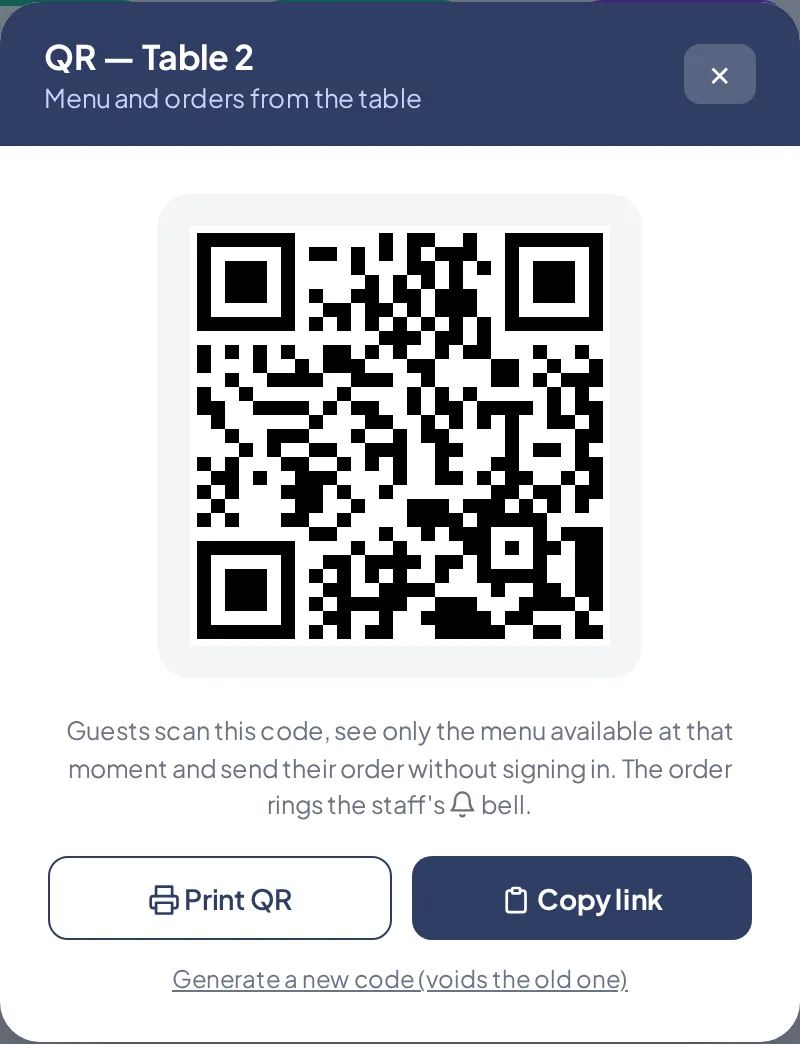
A table's QR code.
What the guest does
- They scan the code with their phone camera and see the menu in English or Spanish, by category.
- They tap + on each dish, add notes for the kitchen and their name if they like.
- They tap Send order to the kitchen and see Order sent.
Confirm the order
- When an order comes in, an alert sounds and 🔔 appears in Tables (plus a red button on other screens).
- Tap 🔔, check the order and tap ✓ Received. If it isn't right, tap Discard.
Related articles
Set up your tables and seating areasCreate your tables, group them by area (patio, upstairs) and lay out your floor plan by dragging them.Your restaurant menu and special dishesSee your menu with what's available, add special dishes and print today's menu.Charge a table: full check, by seat and tipCharge the full check or by seat, add the tip and choose the payment method.
Still have questions?
Write to us and we'll reply within one business day.