
Help center › Getting started
Set up your business details
These details show on your receipts, invoices and emails. Only an Admin can change them.
Open your settings
- In the left menu, tap Settings (at the bottom), then the My Business tab.
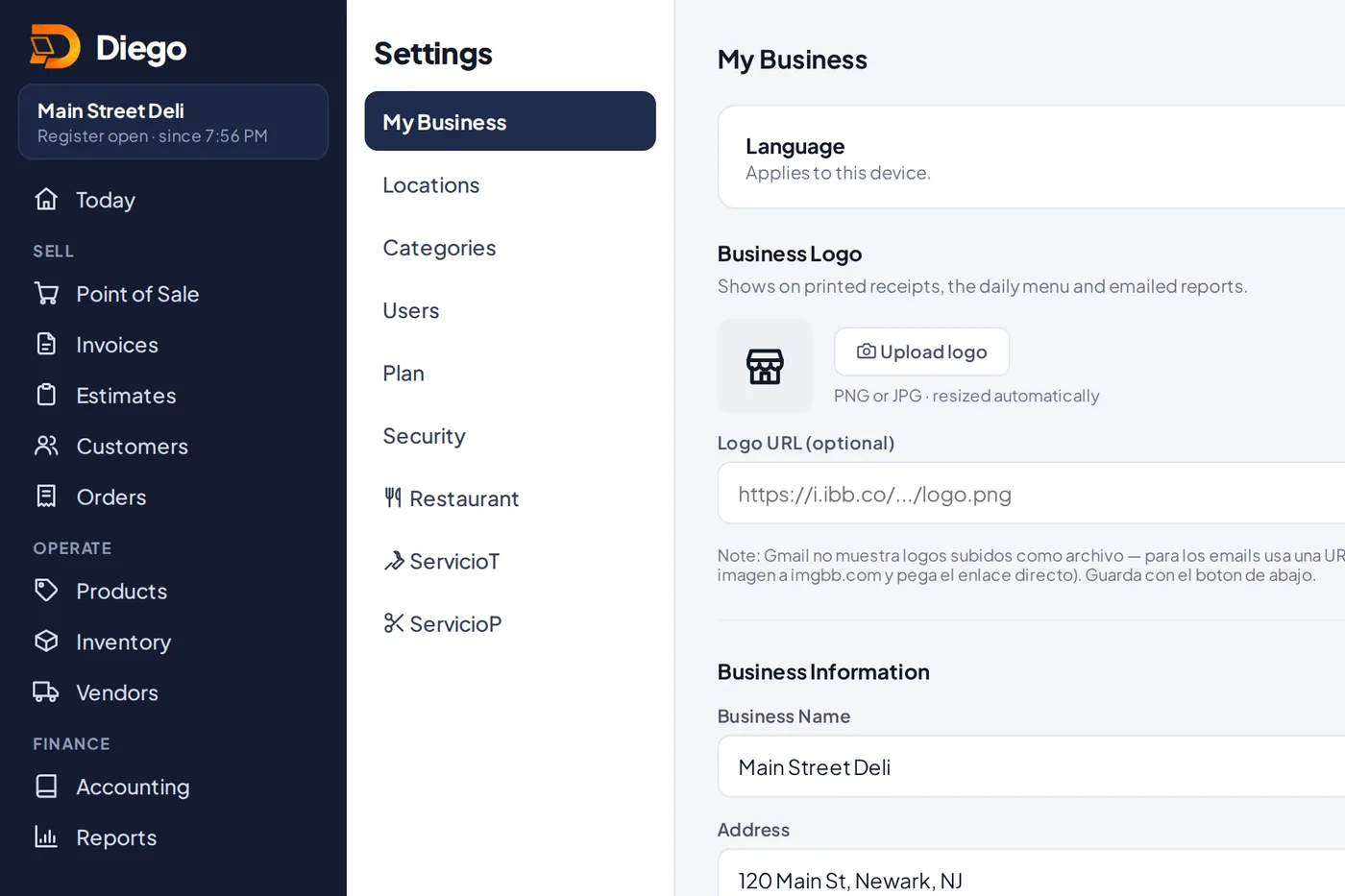
Settings → My Business.
Fill in your details
- Business Logo: tap Upload logo and pick a PNG or JPG image. Diego resizes it for you.
- Business Information: enter your Business Name, Address, Phone and EIN.
- Country and taxes: check your sales tax rate (%). Country and currency are set when the account is created; if you need to change them, email us.
- Receipt message: a short line printed at the end of every receipt, for example “Thank you for your purchase!”.
- Receipt printer: choose your paper width, 80 mm or 58 mm.
- Save your settings. You'll see a confirmation that they were saved.
Related articles
Still have questions?
Write to us and we'll reply within one business day.